Where to start
- Set up your business details (name, logo, currency, KHQR)
- Add your staff
- Enter the basics first, in this order: Tours → Customers → Guides → Vehicles
- Everyday work: Bookings · Expenses
- Tools and reports: Reports
Basics (set up first)
Other modules use these, so enter them first.
Tours
កត់ត្រា៖ ឈ្មោះ · រយៈពេល · តម្លៃ/នាក់ · រួមមាន · រូបភាព។
- Press Tours in the left menu to open the list.
- Press “Add new” at the top right.
- Fill in the fields as in the table below (“required” fields must be filled).
- Press “Save”. Press any row in the list to view, edit or delete it.

| Field | How to fill it |
|---|---|
| Name required | Type text |
| Duration | Type text |
| Price / person | Type an amount |
| Includes | Type longer text |
| Photo | Upload a picture |

Customers
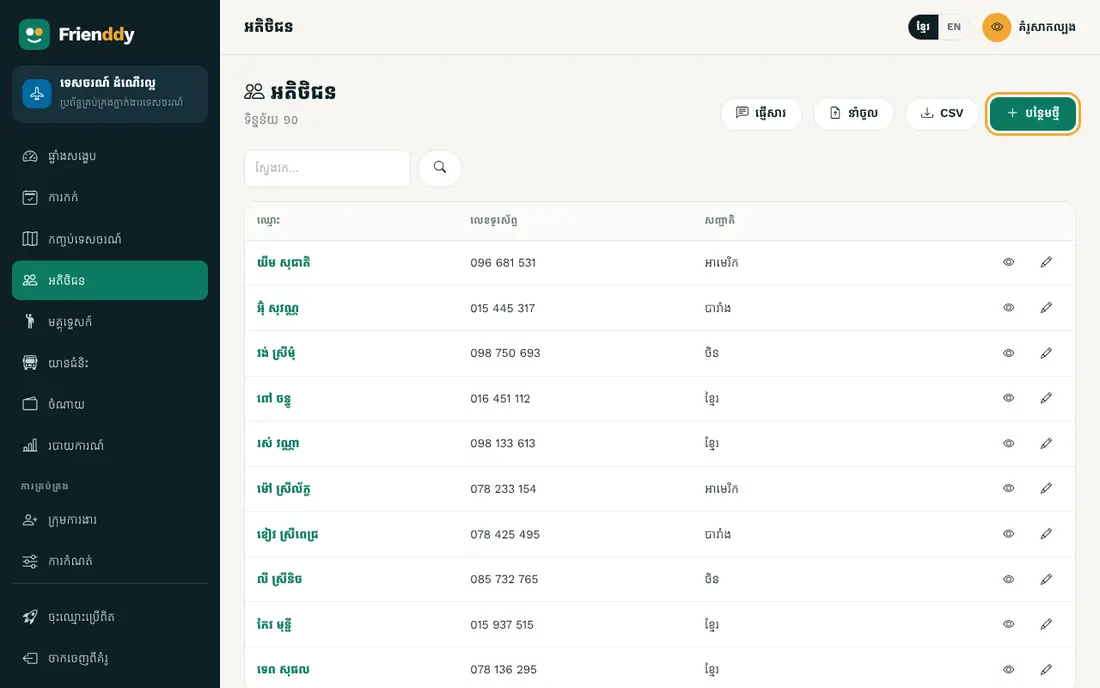
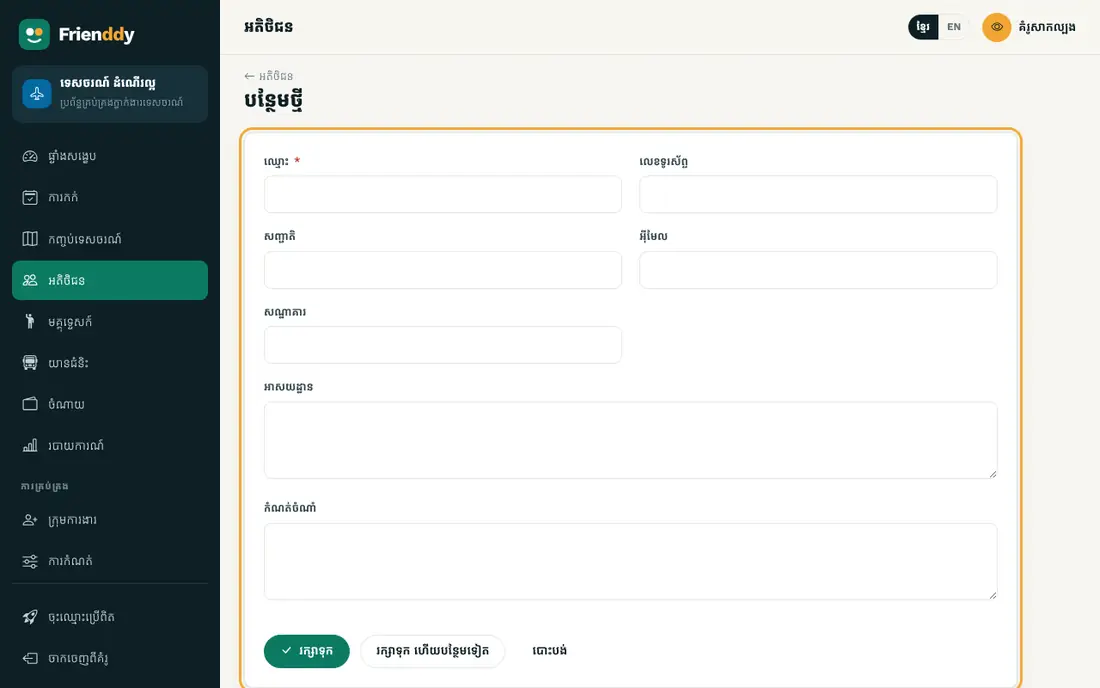
កត់ត្រា៖ ឈ្មោះ · លេខទូរស័ព្ទ · សញ្ជាតិ · អ៊ីមែល · សណ្ឋាគារ · អាសយដ្ឋាន · កំណត់ចំណាំ។
- Press Customers in the left menu to open the list.
- Press “Add new” at the top right.
- Fill in the fields as in the table below (“required” fields must be filled).
- Press “Save”. Press any row in the list to view, edit or delete it.
| Field | How to fill it |
|---|---|
| Name required | Type text |
| Phone | Type a phone number |
| Nationality | Type text |
| Type an email | |
| Hotel | Type text |
| Address | Type longer text |
| Note | Type longer text |
Guides
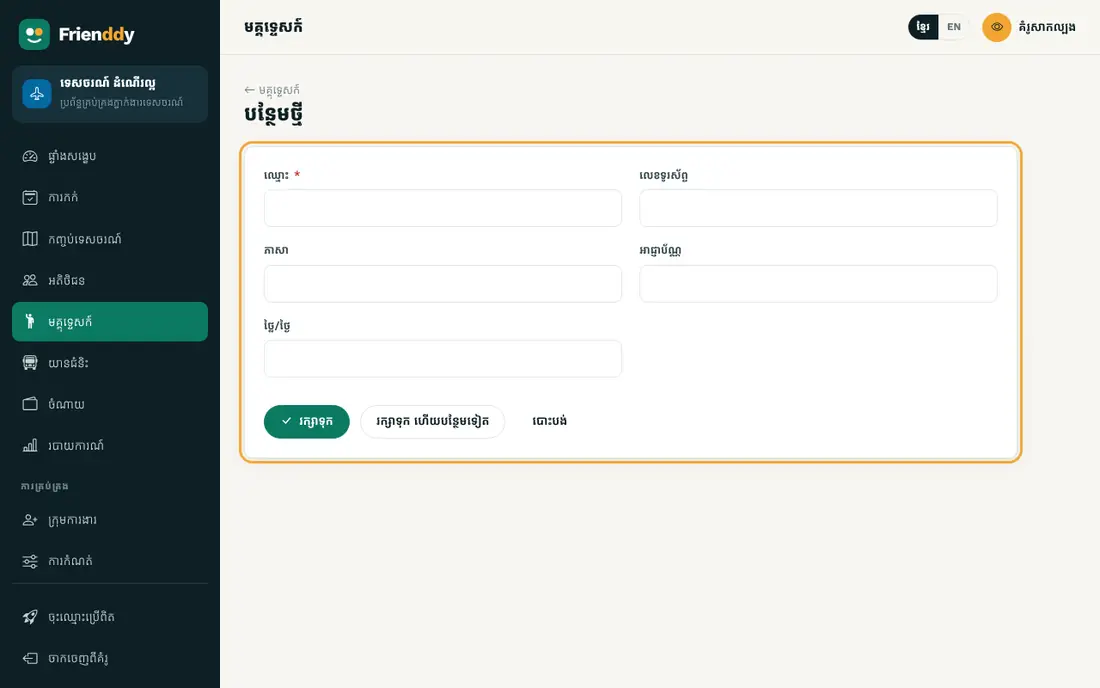
កត់ត្រា៖ ឈ្មោះ · លេខទូរស័ព្ទ · ភាសា · អាជ្ញាប័ណ្ណ · ថ្លៃ/ថ្ងៃ។
- Press Guides in the left menu to open the list.
- Press “Add new” at the top right.
- Fill in the fields as in the table below (“required” fields must be filled).
- Press “Save”. Press any row in the list to view, edit or delete it.

| Field | How to fill it |
|---|---|
| Name required | Type text |
| Phone | Type a phone number |
| Languages | Type text |
| Licence no. | Type text |
| Rate / day | Type an amount |
Vehicles
កត់ត្រា៖ ស្លាកលេខ · ប្រភេទ · ចំនួនកៅអី · អ្នកបើកបរ · លេខអ្នកបើកបរ។
- Press Vehicles in the left menu to open the list.
- Press “Add new” at the top right.
- Fill in the fields as in the table below (“required” fields must be filled).
- Press “Save”. Press any row in the list to view, edit or delete it.

| Field | How to fill it |
|---|---|
| Plate no. required | Type text |
| Type | Choose from the list: Tuk-tuk / Car / Van / Bus / Boat |
| Seats | Type a number |
| Driver | Type text |
| Driver phone | Type a phone number |

Everyday work
The modules you use every day.
Bookings
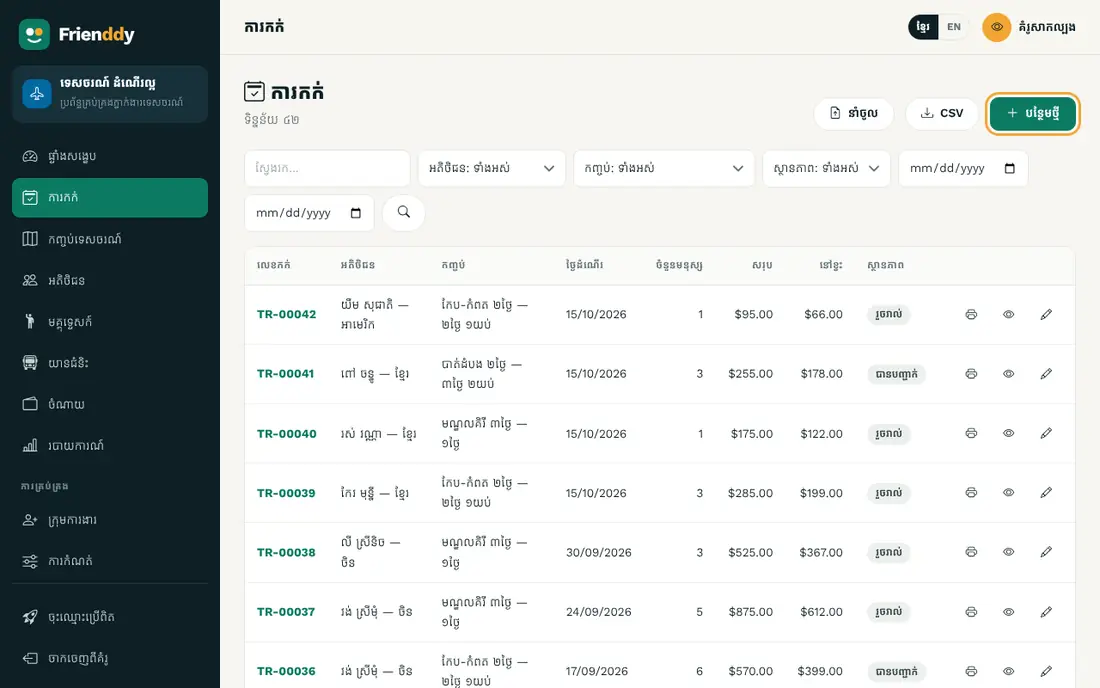
កត់ត្រា៖ លេខកក់ · អតិថិជន · កញ្ចប់ · ថ្ងៃដំណើរ · ចំនួនមនុស្ស · តម្លៃ/នាក់ · កន្លែងទទួល · ម៉ោងទទួល · មគ្គុទ្ទេសក៍ …។ រាប់ជាចំណូលក្នុងរបាយការណ៍។ ស្ថានភាព៖ រង់ចាំបញ្ជាក់ / បានបញ្ជាក់ / រួចរាល់ / បោះបង់។
- Press Bookings in the left menu to open the list.
- Press “Add new” at the top right.
- Fill in the fields as in the table below (“required” fields must be filled).
- Press “Save”. Press any row in the list to view, edit or delete it.
| Field | How to fill it |
|---|---|
| Customer required | Choose from the list (from “Customers”) |
| Tour required | Choose from the list (from “Tours”) |
| Tour date required | Pick a date |
| Pax | Type a number |
| Price / person | Type an amount |
| Pickup point | Type text |
| Pickup time | Type text |
| Guide | Choose from the list (from “Guides”) |
| Vehicle | Choose from the list (from “Vehicles”) |
| Total required | Type an amount |
| Deposit | Type an amount |
| Balance due | Type an amount |
| Status | Choose from the list: Pending / Confirmed / Completed / Cancelled |
| Payment | Choose from the list: Cash / ABA / Other bank / Other |
| Note | Type longer text |

- Entries here count as income on the dashboard and in reports.
- Status: Pending → Confirmed → Completed → Cancelled — change it from the detail page.
Expenses
កត់ត្រា៖ ចំណងជើង · ប្រភេទ · ចំនួនទឹកប្រាក់ · កាលបរិច្ឆេទ · វិធីបង់ · កំណត់ចំណាំ។ រាប់ជាចំណាយក្នុងរបាយការណ៍។
- Press Expenses in the left menu to open the list.
- Press “Add new” at the top right.
- Fill in the fields as in the table below (“required” fields must be filled).
- Press “Save”. Press any row in the list to view, edit or delete it.

| Field | How to fill it |
|---|---|
| Title required | Type text |
| Category | Choose from the list: Rent / Salary / Utilities / Supplies / Fuel / Repairs / Marketing / Other |
| Amount required | Type an amount |
| Date required | Pick a date |
| Method | Choose from the list: Cash / ABA / Other bank / Other |
| Note | Type longer text |
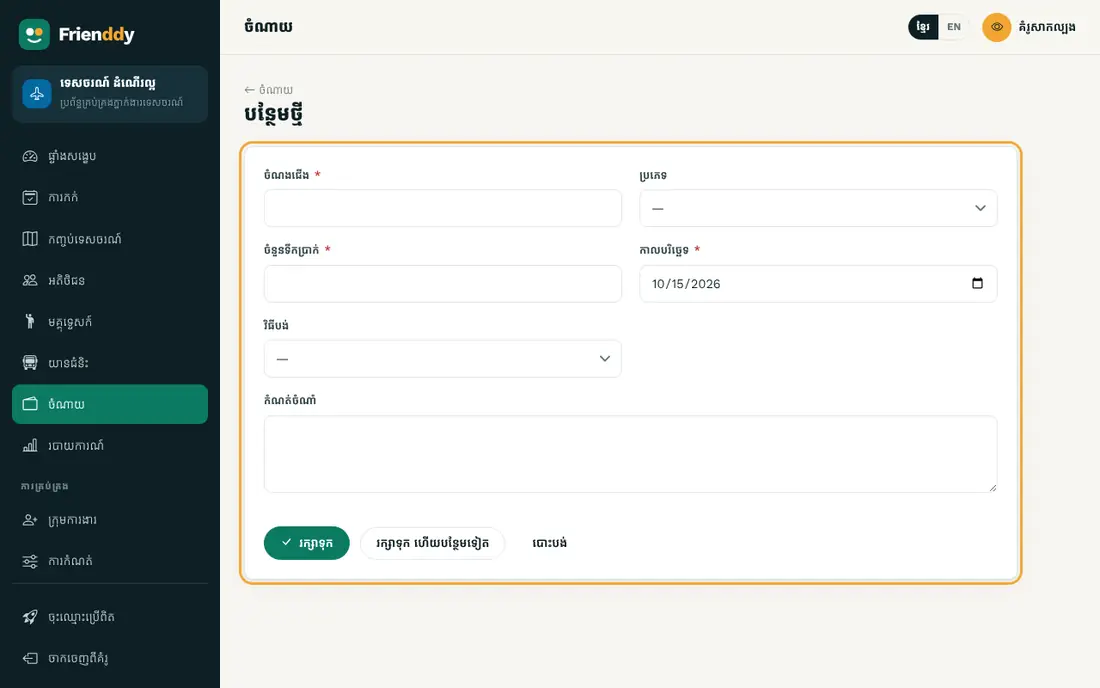
- Entries here count as expenses on the dashboard and in reports.
Tools and reports
Special screens that work with the data above.
Reports
សង្ខេបចំណូល ចំណាយ និងប្រាក់ចំណេញ៖ ថ្ងៃនេះ ខែនេះ ឆ្នាំនេះ ឬរយៈពេលជ្រើសរើស — តាមប្រភពចំណូល តាមប្រភេទចំណាយ និងមុខលក់ដាច់ជាងគេ។ បោះពុម្ពបាន។
- Press Reports in the left menu.
- Detailed lesson: Daily, monthly and yearly reports →

Still need help?
The Frienddy team is happy to help, in Khmer or English.