Where to start
- Set up your business details (name, logo, currency, KHQR)
- Add your staff
- Enter the basics first, in this order: Installment sales → Categories → Products → Customers → Suppliers
- Everyday work: Sales · Installment payments · Purchases · Expenses
- Tools and reports: Point of Sale · Reports
Basics (set up first)
Other modules use these, so enter them first.
Installment sales
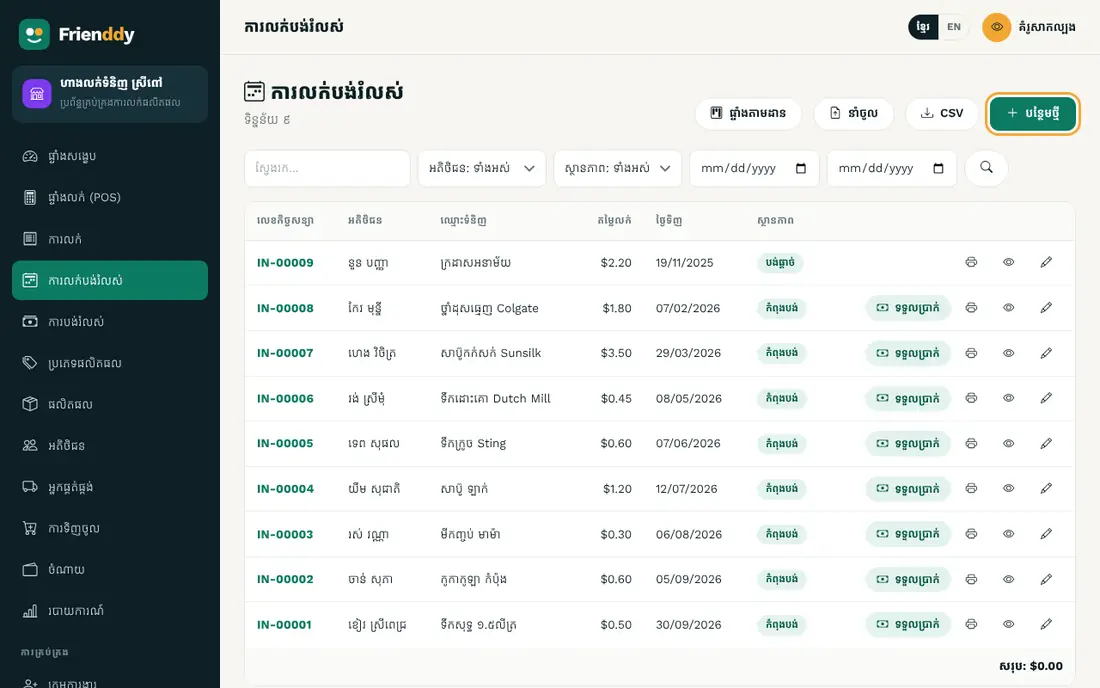
តាមដានអតិថិជនបង់រំលស់ ថ្ងៃត្រូវបង់ ប្រាក់នៅជំពាក់ និងអ្នកបង់យឺត។ មានម៉ាស៊ីនគណនាប្រាក់ត្រូវបង់ប្រចាំខែ ជូនអតិថិជនមុនលក់។
- Press Installment sales in the left menu to open the list.
- Press “Add new” at the top right.
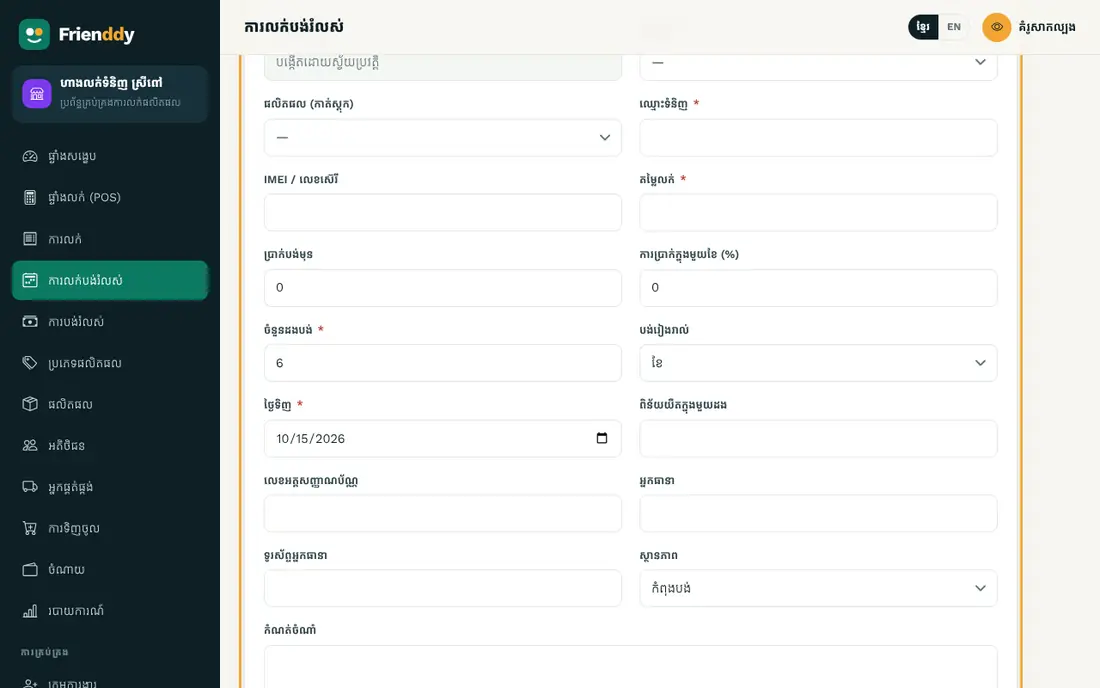
- Fill in the fields as in the table below (“required” fields must be filled).
- Press “Save”. Press any row in the list to view, edit or delete it.
| Field | How to fill it |
|---|---|
| Customer required | Choose from the list (from “Customers”) |
| Product (deducts stock) | Choose from the list (from “Products”) |
| Item required | Type text |
| IMEI / serial no. | Type text |
| Selling price required | Type an amount |
| Down payment | Type an amount |
| Interest per month (%) | Type a percentage |
| Number of installments required | Type a number |
| Pay every | Choose from the list: Month / Week |
| Purchase date required | Pick a date |
| Late fee per installment | Type an amount |
| ID card no. | Type text |
| Guarantor | Type text |
| Guarantor phone | Type a phone number |
| Status | Choose from the list: Active / Paid off / Defaulted / Repossessed / Cancelled |
| Note | Type longer text |
- Entries here count as income on the dashboard and in reports.
- Status: Active → Paid off → Defaulted → Repossessed → Cancelled — change it from the detail page.
- On the detail page you can print a document (invoice or receipt).
- Detailed lesson: Instalment sales →
Categories
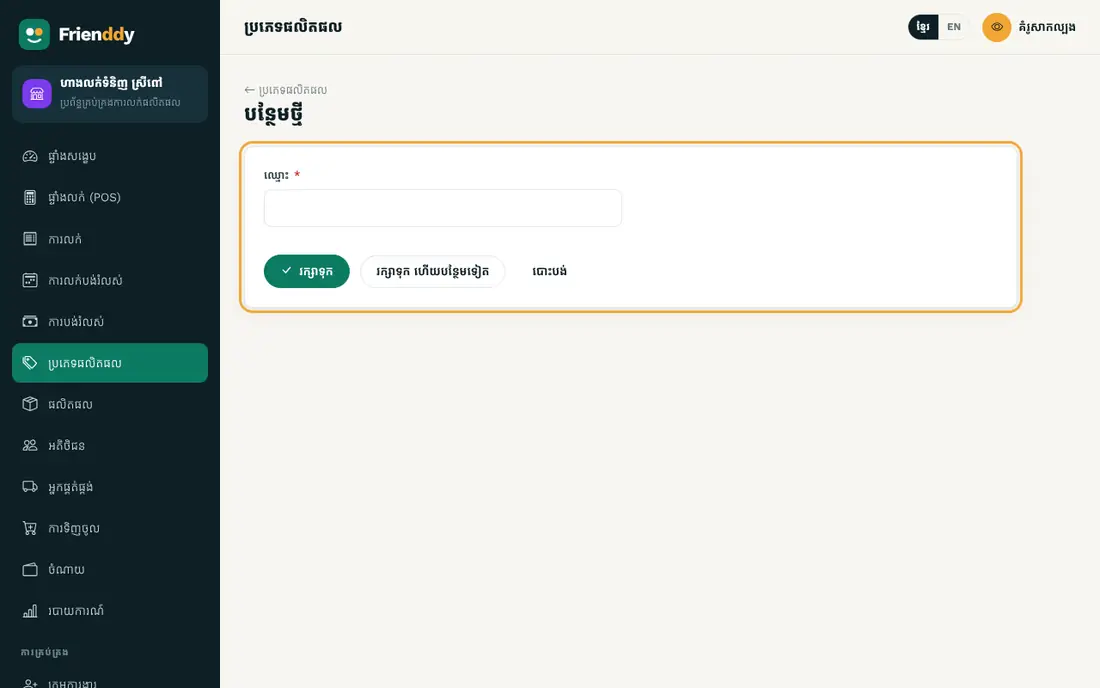
កត់ត្រា៖ ឈ្មោះ។
- Press Categories in the left menu to open the list.
- Press “Add new” at the top right.
- Fill in the fields as in the table below (“required” fields must be filled).
- Press “Save”. Press any row in the list to view, edit or delete it.

| Field | How to fill it |
|---|---|
| Name required | Type text |
Products
កត់ត្រា៖ កូដ · បាកូដ · ឈ្មោះផលិតផល · ប្រភេទ · ឯកតា · ថ្លៃដើម · តម្លៃលក់ · ស្តុក · ស្តុកអប្បបរមា …។ ជូនដំណឹងពេលស្តុកជិតអស់។
- Press Products in the left menu to open the list.
- Press “Add new” at the top right.
- Fill in the fields as in the table below (“required” fields must be filled).
- Press “Save”. Press any row in the list to view, edit or delete it.

| Field | How to fill it |
|---|---|
| Barcode | Type text |
| Product name required | Type text |
| Category | Choose from the list (from “Categories”) |
| Unit | Type text |
| Cost | Type an amount |
| Price required | Type an amount |
| Stock | Type a number |
| Min stock | Type a number |
| Image | Upload a picture |

- Set a minimum and the dashboard warns you when stock runs low.
Customers
កត់ត្រា៖ ឈ្មោះ · លេខទូរស័ព្ទ · ប្រភេទ · អាសយដ្ឋាន។
- Press Customers in the left menu to open the list.
- Press “Add new” at the top right.
- Fill in the fields as in the table below (“required” fields must be filled).
- Press “Save”. Press any row in the list to view, edit or delete it.

| Field | How to fill it |
|---|---|
| Name required | Type text |
| Phone | Type a phone number |
| Type | Choose from the list: Retail / Wholesale / VIP |
| Address | Type longer text |

Suppliers
កត់ត្រា៖ ឈ្មោះ · អ្នកទំនាក់ទំនង · លេខទូរស័ព្ទ · អាសយដ្ឋាន។
- Press Suppliers in the left menu to open the list.
- Press “Add new” at the top right.
- Fill in the fields as in the table below (“required” fields must be filled).
- Press “Save”. Press any row in the list to view, edit or delete it.

| Field | How to fill it |
|---|---|
| Name required | Type text |
| Contact person | Type text |
| Phone | Type a phone number |
| Address | Type longer text |

Everyday work
The modules you use every day.
Sales
កត់ត្រា៖ លេខវិក្កយបត្រ · កាលបរិច្ឆេទ · អតិថិជន · មុខទំនិញ · សរុបរង · បញ្ចុះតម្លៃ · សរុប · ប្រាក់បានបង់ខ្លះ · វិធីបង់ …។ មានបញ្ជីមុខទំនិញ/សេវា គណនាសរុបស្វ័យប្រវត្តិ។ រាប់ជាចំណូលក្នុងរបាយការណ៍។ ស្ថានភាព៖ បានបង់ / ជំពាក់ / បង់ខ្លះ / បោះបង់។ បោះពុម្ពបង្កាន់ដៃ។
- Press Sales in the left menu to open the list.
- Press “Add new” at the top right.
- Fill in the fields as in the table below (“required” fields must be filled).
- Press “Save”. Press any row in the list to view, edit or delete it.

| Field | How to fill it |
|---|---|
| Date required | Pick a date |
| Customer | Choose from the list (from “Customers”) |
| Items | Add one product/service per row (quantity × price) — the total is worked out for you |
| Subtotal | Type an amount |
| Discount | Type an amount |
| Total required | Type an amount |
| Amount paid so far | Type an amount Only for credit sales or part payments |
| Payment | Choose from the list: Cash / ABA / Other bank / Other |
| Status | Choose from the list: Paid / Unpaid / Partly paid / Cancelled |
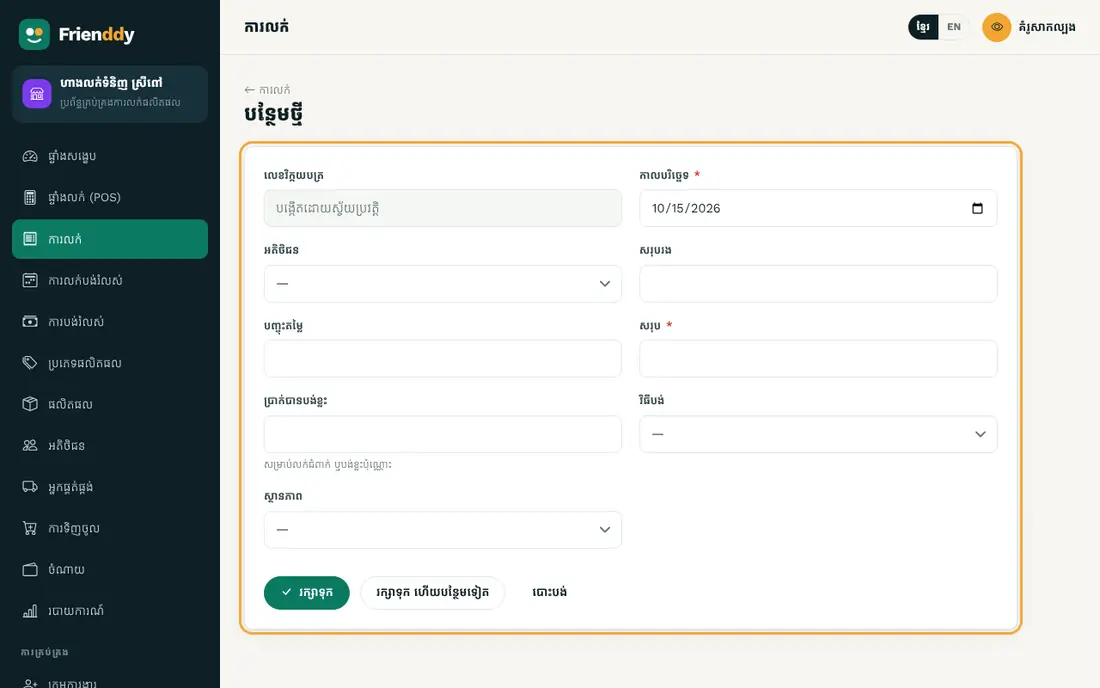
- This form has an item table: add a row, pick the product, type the quantity, and the total is calculated.
- Entries here count as income on the dashboard and in reports.
- Status: Paid → Unpaid → Partly paid → Cancelled — change it from the detail page.
- On the detail page you can print a document (invoice or receipt).
Installment payments
កត់ត្រា៖ កិច្ចសន្យាបង់រំលស់ · កាលបរិច្ឆេទ · ចំនួនទឹកប្រាក់សរុប · ក្នុងនោះ ពិន័យ · វិធីបង់ · កំណត់ចំណាំ។ រាប់ជាចំណូលក្នុងរបាយការណ៍។
- Press Installment payments in the left menu to open the list.
- Press “Add new” at the top right.
- Fill in the fields as in the table below (“required” fields must be filled).
- Press “Save”. Press any row in the list to view, edit or delete it.

| Field | How to fill it |
|---|---|
| Installment plan required | Choose from the list (from “Installment sales”) |
| Date required | Pick a date |
| Total received required | Type an amount |
| of which late fee | Type an amount |
| Method | Choose from the list: Cash / ABA / Other bank / Other |
| Note | Type text |
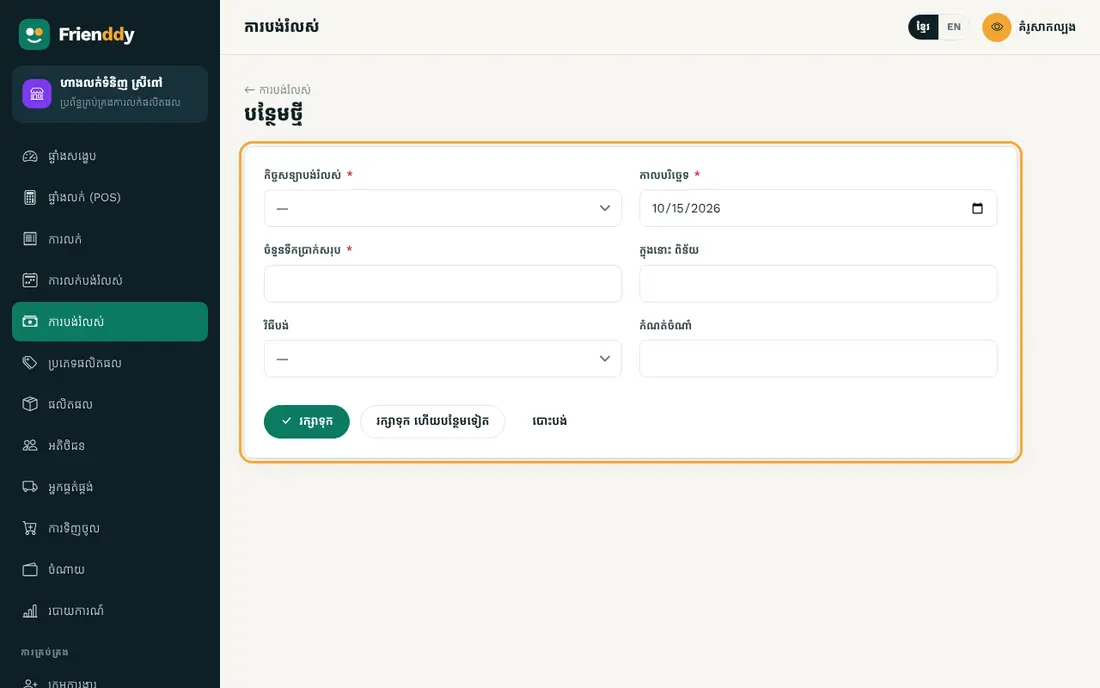
- Entries here count as income on the dashboard and in reports.
Purchases
កត់ត្រា៖ លេខ · អ្នកផ្គត់ផ្គង់ · ផលិតផល · បរិមាណ · ថ្លៃដើម/ឯកតា · សរុប · កាលបរិច្ឆេទ។ រាប់ជាចំណាយក្នុងរបាយការណ៍។
- Press Purchases in the left menu to open the list.
- Press “Add new” at the top right.
- Fill in the fields as in the table below (“required” fields must be filled).
- Press “Save”. Press any row in the list to view, edit or delete it.

| Field | How to fill it |
|---|---|
| Supplier | Choose from the list (from “Suppliers”) |
| Product required | Choose from the list (from “Products”) |
| Quantity required | Type a number |
| Unit cost | Type an amount |
| Total required | Type an amount |
| Date required | Pick a date |

- Entries here count as expenses on the dashboard and in reports.
Expenses
កត់ត្រា៖ ចំណងជើង · ប្រភេទ · ចំនួនទឹកប្រាក់ · កាលបរិច្ឆេទ · វិធីបង់ · កំណត់ចំណាំ។ រាប់ជាចំណាយក្នុងរបាយការណ៍។
- Press Expenses in the left menu to open the list.
- Press “Add new” at the top right.
- Fill in the fields as in the table below (“required” fields must be filled).
- Press “Save”. Press any row in the list to view, edit or delete it.

| Field | How to fill it |
|---|---|
| Title required | Type text |
| Category | Choose from the list: Rent / Salary / Utilities / Supplies / Marketing / Other |
| Amount required | Type an amount |
| Date required | Pick a date |
| Method | Choose from the list: Cash / ABA / Other bank / Other |
| Note | Type longer text |

- Entries here count as expenses on the dashboard and in reports.
Tools and reports
Special screens that work with the data above.
Point of Sale
លក់លឿន៖ ជ្រើស ឬស្កេនបាកូដទំនិញ បញ្ចុះតម្លៃ ហើយបង់ជាសាច់ប្រាក់ ABA ឬជំពាក់។ កាត់ស្តុក និងចេញបង្កាន់ដៃភ្លាមៗ។ ភ្ជាប់អតិថិជនទៅនឹងការលក់ ដើម្បីតាមដានបំណុល។
- Press Point of Sale in the left menu.
- Detailed lesson: Sell with the POS →

Reports
សង្ខេបចំណូល ចំណាយ និងប្រាក់ចំណេញ៖ ថ្ងៃនេះ ខែនេះ ឆ្នាំនេះ ឬរយៈពេលជ្រើសរើស — តាមប្រភពចំណូល តាមប្រភេទចំណាយ និងមុខលក់ដាច់ជាងគេ។ បោះពុម្ពបាន។
- Press Reports in the left menu.
- Detailed lesson: Daily, monthly and yearly reports →

Still need help?
The Frienddy team is happy to help, in Khmer or English.